
Create skills
Build your AI the way you want it. A skill is a short set of instructions that KIplatz follows in a conversation, just as you choose the paint, seats and wheels yourself when you buy a new car. Once written down, you never have to explain the same thing again.
Tip
The fastest way is My AI: 3 questions to tap, and the program writes the first set of instructions for you.
Taking a template
- Click “Skills” on the left.
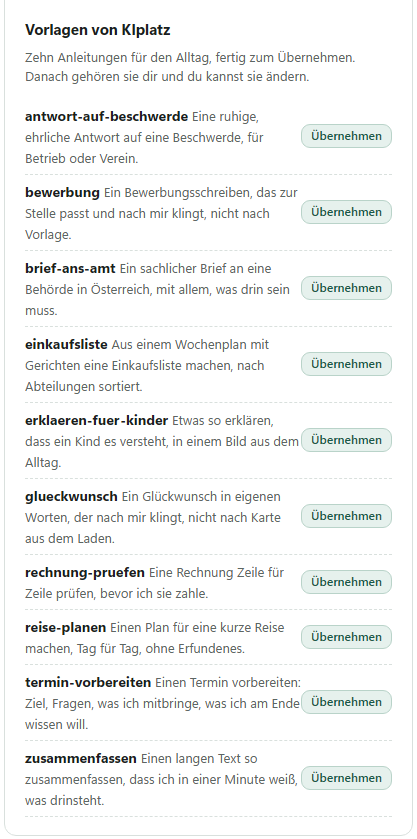
- Under “Vorlagen von KIplatz” (templates from KIplatz) there are 10 sets of instructions for everyday life.
- Click “Übernehmen” (take) on the one that fits. After that it is yours, and you can change it.
| Example | What it is for |
|---|---|
| brief-ans-amt | a factual letter to an authority in Austria, with everything that has to be in it |
| rechnung-pruefen | check an invoice line by line before you pay |
| einkaufsliste | a list made from the weekly plan, sorted by shop department |
| erklaeren-fuer-kinder | explain something so that a child understands it |
| zusammenfassen | shorten a long text so you know in a minute what it says |
Writing your own
- Click “Neuen Skill schreiben” (write a new skill). A text field with a pattern opens.
- At the top, enter a short name next to “name:” and, next to “description:”, one sentence on what it is good for.
- Below it, write the instructions as you would give them to a person: what comes first, what must never be missing, what must never go in.
- Click “Speichern” (save).
Tip
The name becomes a folder name in lower case: the program turns “Rechnung prüfen” into “rechnung-pruefen”.
Trying it out in a conversation
Under the input field there is “Skill:” with a selection. There you pick your set of instructions, and it applies to this conversation. If the result does not fit, click “Bearbeiten” (edit) next to it in your list, change the instruction and ask again.
Always on
Some things you want in every conversation, for example instructions that always address you informally. Tick “Immer an” (always on) for it, and it applies in every conversation, including new ones, without you having to look for it. You can do this under Skills and in the middle of a conversation: on the PC via “Immer an …” next to the selection, in the app via the plus next to the input field. All the others you choose as before, only where they fit.
Passing on and bringing in
“Als ZIP” (as ZIP) saves a set of instructions as a file you can pass on. With “Importieren (ZIP oder SKILL.md)” (import) you bring in someone else's. SKILL.md is an open format that other AI programs read too; whatever comes from there works here as well.
You share yours with the whole community when you build along in the workshop: with an attached file or as a change proposal, together with the licence it should be published under. After the check, every member gets it in the program.
Good to know
Each of these sets of instructions is only text, at most 20,000 characters. Nothing in it is executed, scripts in a ZIP file are skipped, and the house rules are applied to every one.