
Set limits
You decide when and how much your PC works for the community. Everything for it is on the program page “Rechenkraft teilen” (share computing), in the card “Freigabe” (sharing).
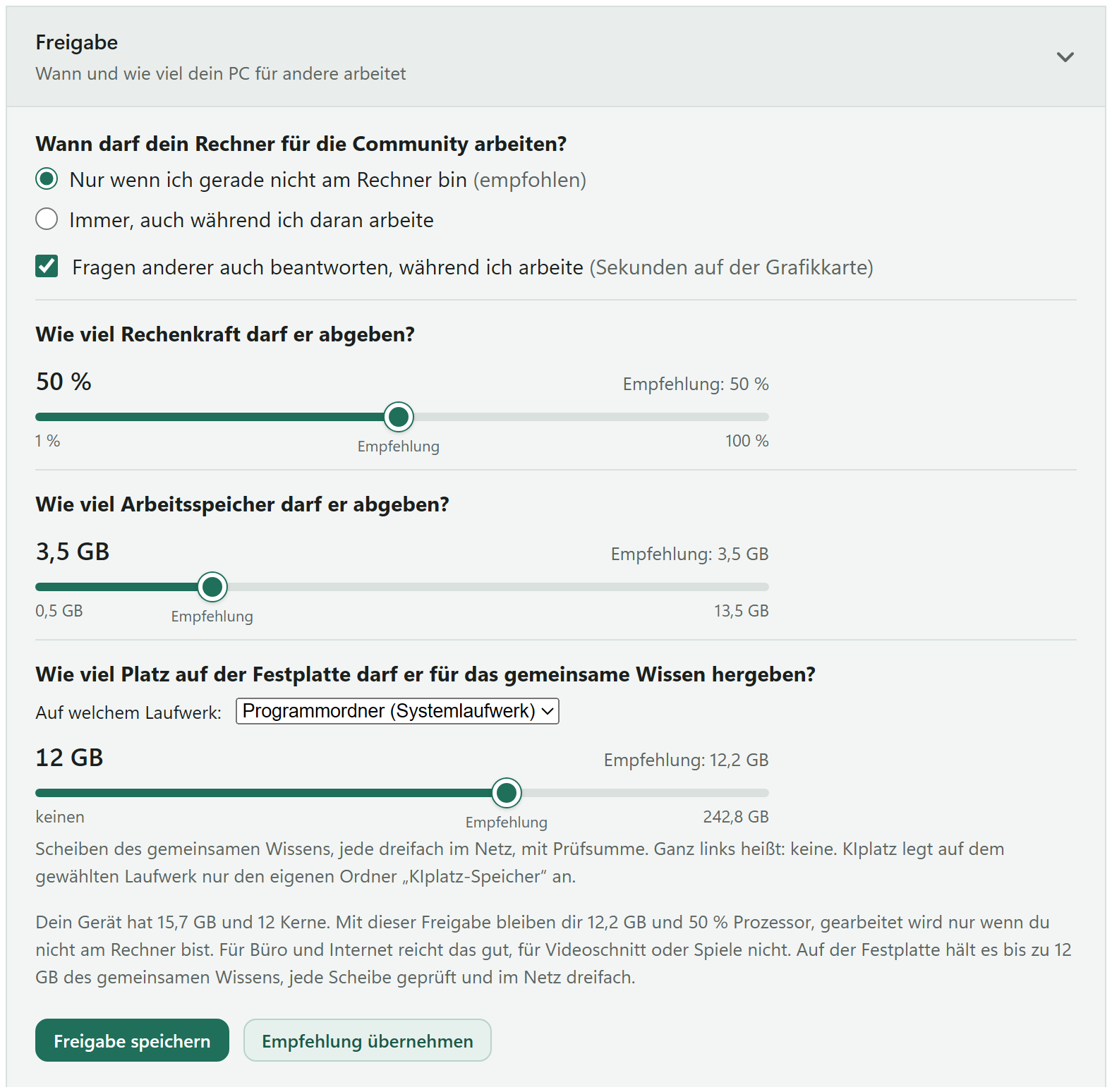
Sharing, step by step
- On the left, open the page “Rechenkraft teilen” (share computing). On the right is the card “Freigabe” (sharing).
- Under “Wann darf dein Rechner für die Community arbeiten?” (when may your computer work for the community?), choose one of the two options.
- Under “Wie viel Rechenkraft darf er abgeben?” (how much computing power may it give?), move the slider to the share you give, between 1 and 100%.
- Under “Wie viel Arbeitsspeicher darf er abgeben?” (how much memory may it give?), move the slider to the amount in GB.
- Under “Wie viel Platz auf der Festplatte darf er für das gemeinsame Wissen hergeben?” (how much hard drive space may it give for the shared knowledge?), first choose the drive, then move the slider to the amount. Far left means none.
- Read the sentence below it. It tells you what is left for you with this choice.
- Click “Freigabe speichern” (save sharing).
Tip
Not sure? Click “Empfehlung übernehmen” (use the recommendation). The program then enters what suits your PC. It is only saved after “Freigabe speichern”.
The switches and sliders in detail
| Setting | What it does |
|---|---|
| “Nur wenn ich gerade nicht am Rechner bin” (only when I am not at the computer) | It works only once you have used neither keyboard nor mouse for 2 minutes. |
| “Immer, auch während ich daran arbeite” (always, even while I work on it) | It also works in the background, as long as it is switched on. |
| “Fragen anderer auch beantworten, während ich arbeite” (also answer others’ questions while I work) | Only appears on PCs that can answer themselves. An answer needs the graphics card for a few seconds. |
| Computing power: 1 to 100% | The share of the processor it may give. |
| Memory: in steps of 0.5 GB | The slider only goes as far as leaves you at least 2 GB. |
| Hard drive: drive and amount | Room for slices of the shared knowledge, each one three times in the network. KIplatz only creates the folder “KIplatz-Speicher” (KIplatz storage) on the drive. The suggestion is 5% of the free space, at least 500 MB, at most 20 GB. |
Above every slider it says “Empfehlung: …” (recommendation), and a mark under the slider shows where it lies. The suggestion is: about a quarter of your memory, 50% computing power from 8 cores, otherwise 25%, and only when you are not sitting at the PC.
Battery and heat brake
You do not have to set either of them, they work by themselves. A notebook on battery does not work for others. Plug it in and it carries on by itself.
Before every work step, your PC reads the temperature of the graphics card, if it provides a reading. From 85 °C it pauses for 60 seconds and then checks again. During that time, the top of the page says “Hitzebremse” (heat brake) with the measured temperature.
Stop at once
“Stopp” (stop) on the same page ends the work on the spot. “Pause” holds it until you click “Start” again. For the whole community there is also our kill switch: then no PC gets jobs any more, and your program answers your questions itself.
Good to know
In the morning, a free PC fetches the weather and headlines for everyone in advance. You switch that off under “Einstellungen” (settings), card “Nachschauen im Internet” (looking things up on the internet), with the switch “In der Früh Wetter und Schlagzeilen für alle Mitglieder vorholen” (fetch weather and headlines for all members in the morning).
Which jobs your PC does within this frame is under What your PC does.